
ELISA Data Processing with Origin and Operating Instructions
After obtaining raw OD readings from ELISA assays, standard‑curve fitting and sample concentration conversion are critical to the reliability of experimental data.
The concentration‑absorbance response of ELISA generally follows an S‑shaped nonlinear pattern. Simple linear fitting cannot accurately reflect real‑world signal changes. Professional fitting tools are required for data correction, model selection, fitting‑quality evaluation, and back‑calculation of unknown‑sample concentrations. Many researchers encounter practical obstacles including model‑selection confusion, difficulty interpreting fitting parameters, challenges in producing publication‑ready figures, and cumbersome batch‑sample processing. Origin is a widely‑used scientific tool for data analysis and plotting. It contains abundant built‑in nonlinear fitting functions and fully supports the 4‑Parameter Logistic (4‑PL) model commonly used for ELISA. It enables rigorous statistical evaluation and direct export of publication‑quality standard‑curve graphs, balancing calculation accuracy and figure styling.
Combined with practical ELISA workflows, this article illustrates step‑by‑step how to use Origin to complete replicate‑well quality control, background subtraction, standard‑curve fitting, goodness‑of‑fit assessment, and concentration conversion for unknown samples, helping researchers perform standardized ELISA data analysis. The sandwich ELISA format is used as an example:
1.1 ELISA samples are usually measured in 1‑2 replicate wells. Calculate the mean absorbance values for standards and experimental samples. Subtract the mean OD value of the zero‑concentration standard from the mean OD values of all samples.
1.2 Input standard‑sample OD values and corresponding concentrations, or copy data directly from Excel. Assign standard concentrations to the X‑axis and OD readings to the Y‑axis.
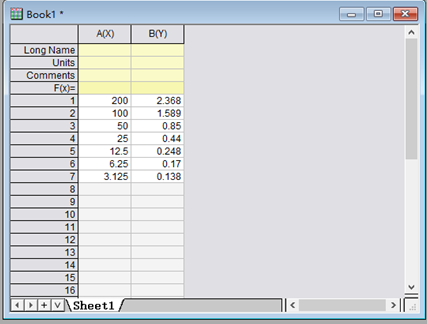
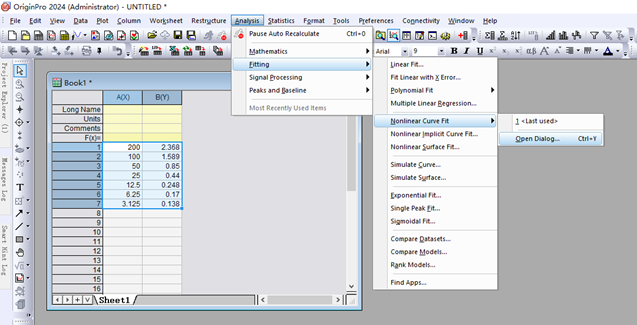
2.1 Select your dataset and open the nonlinear curve‑fitting module.
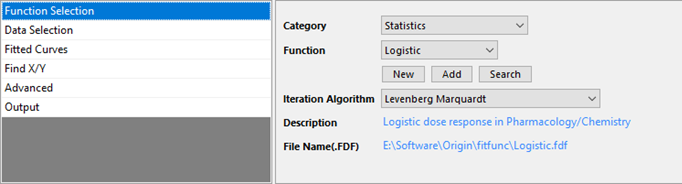
2.2 Select the fitting function and dataset. Choose the Logistic function under the Statistics category.
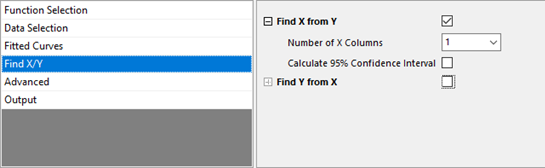
2.3 Check the option for Find X from Y.
2.4 Click the fit button. The fitted curve and related statistical outputs will be generated automatically. Review parameters of the standard curve.
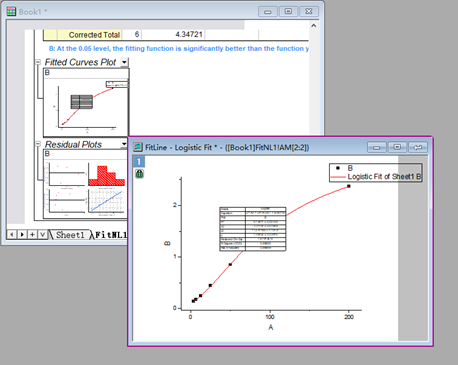
2.5 Double‑click the fitted graph to open editing controls. Double‑click the X‑axis and Y‑axis and set the scale type to Log10. Adjust axis starting values as needed for visual presentation.
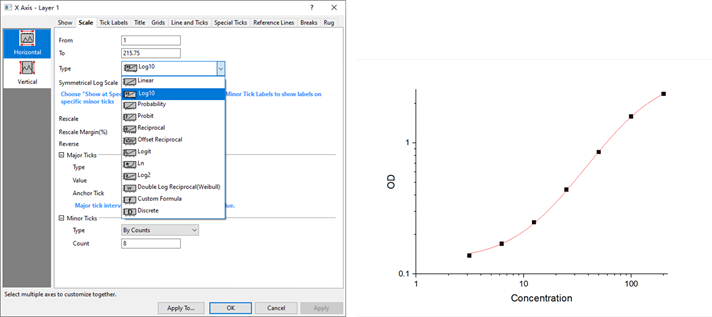
With a valid standard curve generated, Origin can calculate the concentration corresponding to each unknown‑sample OD value.
Open worksheet Fit NLF Find X from Y1 within Book1. Input sample OD values in the left‑hand column; corresponding concentrations will populate automatically in the right‑hand column.
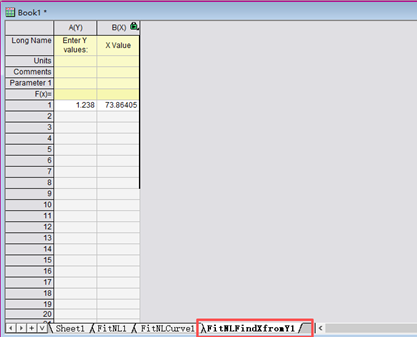
If a sample OD exceeds the upper limit of the standard curve, dilute the sample before measurement for accurate results. The true sample concentration equals the value obtained from the standard curve multiplied by the dilution factor.